Ask your class to open a page and complete one task without using the mouse. Can they reach the control, tell when it has focus, and activate it? A page can look finished and still fail one of those steps.
This 25-minute keyboard navigation exercise gives beginner web developers a small page, one reproducible bug, and a way to verify the fix. Allow five minutes to set up, eight to test, seven to repair and retest, and five to share a bug report. Use W3C’s quick checks as a starting point for the exercise. W3C Easy Checks
Give learners a task and a starting point
The task is to enter a project name, show a preview, and reach the Examples link. Save the following snippet as keyboard-practice.html and open it directly in a browser. The two links point to sections on this practice page. The preview only displays the name locally.
<!doctype html>
<html lang="en">
<meta charset="utf-8">
<title>Project preview practice</title>
<h1>Project preview practice</h1>

<a href="#help">Help</a>
<label for="project-name">Project name</label>
<input id="project-name">

<div id="preview-button" style="cursor: pointer">Show preview</div>
<p id="preview" role="status"></p>

<a href="#examples">Examples</a>

<h2 id="help">Help</h2>
<p>Enter a project name and show its preview.</p>
<h2 id="examples">Examples</h2>
<p>Try a name such as Neighborhood garden.</p>

<script>
  const nameInput = document.querySelector("#project-name");
  const preview = document.querySelector("#preview");
  document.querySelector("#preview-button").addEventListener("click", () => {
    preview.textContent = nameInput.value.trim()
      ? "Preview: " + nameInput.value.trim()
      : "Enter a project name first.";
  });
</script>
</html>
Have pairs use the same browser settings for the first pass. Some browser or operating system settings affect whether Tab includes links. If Help and Examples are skipped too, check those settings and record them with the result. A standalone file keeps the lesson independent of any editor’s surrounding controls.
Watch the order, the focus cue, and the action
One learner drives with the keyboard while the other records where focus lands. Click the page heading to put focus in the page before the first control, then set the mouse aside. Press Tab to reach Help and then Project name. Type Neighborhood garden. Press Tab again and pause. In the starter page, focus jumps to Examples and the preview stays empty. Press Shift+Tab to see whether the same gap appears in reverse. After recording the result, try clicking Show preview once to confirm that its action works with a pointer.
Ask learners three separate questions.
- Could you reach the control? Record which element received focus after the field.
- Could you tell where you were? Describe the focus cue on each stop, such as an outline around the link or input.
- Could you complete the task? Record whether activating the intended control produced the preview text.
These observations relate to distinct WCAG checks. Keyboard covers operating functionality, Focus Order concerns the sequence when it affects meaning or operation, and Focus Visible covers seeing where keyboard focus is. A single test route gives you evidence about those steps on this page. Keyboard · Focus Order · Focus Visible
Replace the clickable div and repeat the same test
Change just the Show preview element. Keep its ID so the existing click handler still applies.
<button id="preview-button" type="button">Show preview</button>
Reload and repeat the route. Focus should go from Help to Project name to Show preview to Examples, with the reverse order on Shift+Tab. With focus on the button, Enter should show Preview: Neighborhood garden. Reload, type a different name, and try Space on the button so you can tell whether the second activation ran. A native button provides both activation keys. W3C Button Pattern
If the button works but the class can barely see where focus is, ask the driver to identify the cue at each stop. In a styled project, inspect the CSS for a rule that suppresses outlines. Restore a visible cue and check it against the actual page background. Keep the order check separate so a clear outline cannot hide an illogical jump between controls.
Turn the observation into a bug a partner can retest
Have each pair write a short report that includes the browser, starting point, keys, expected result, and what happened. For this example, one report could read as follows.
With focus on Project name and a name entered, press Tab once. I expected focus on Show preview so I could activate it. Focus moved straight to Examples and I could not show the preview with the keyboard.
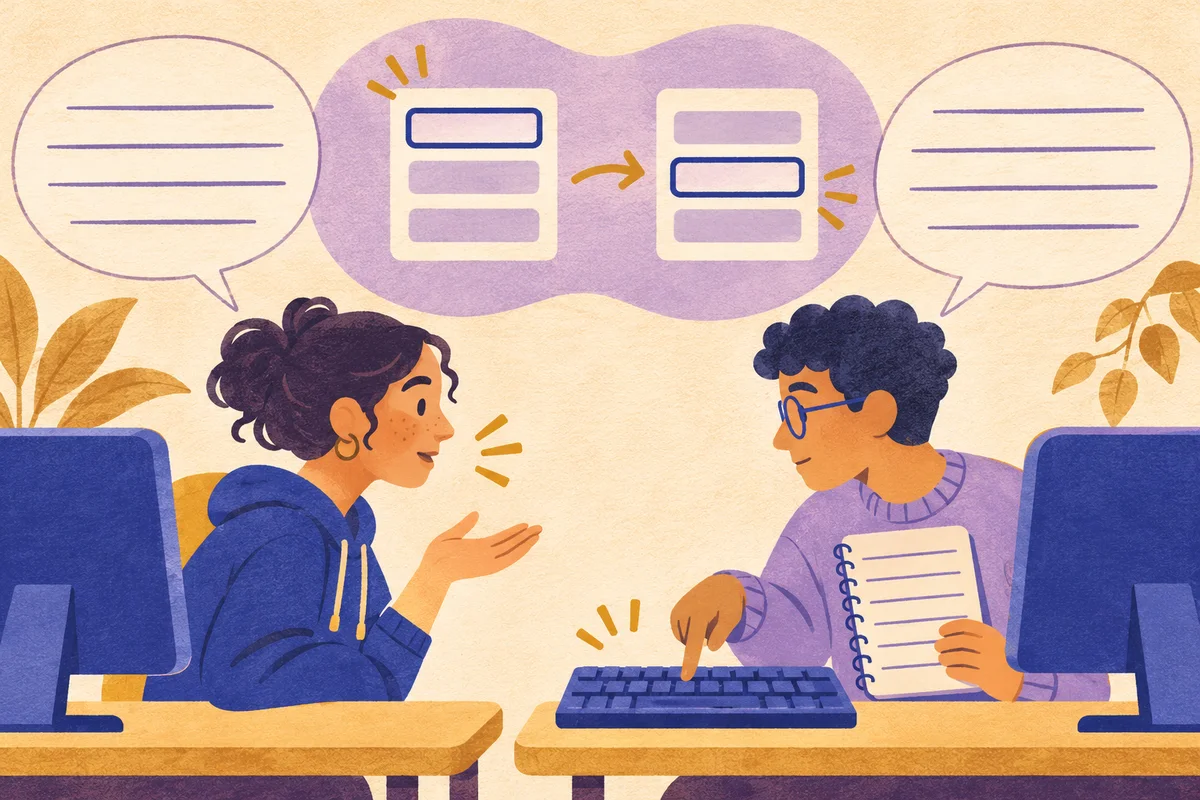
Swap driver and observer. The new driver follows the report on the starter page, then verifies the fixed page. For the last few minutes, ask each pair to choose one small task in their own project and record the next focus stop and the result of activation. This pairs well with a driver and navigator rotation. Online pair programming guide
If your cohort uses a browser editor, you can use a Focus Room session to allow its hostname and the lesson resources in the participating browser. Test the editor and its preview URL before class, then collect the keyboard findings in your usual review tool. Set up a Focus Room session