
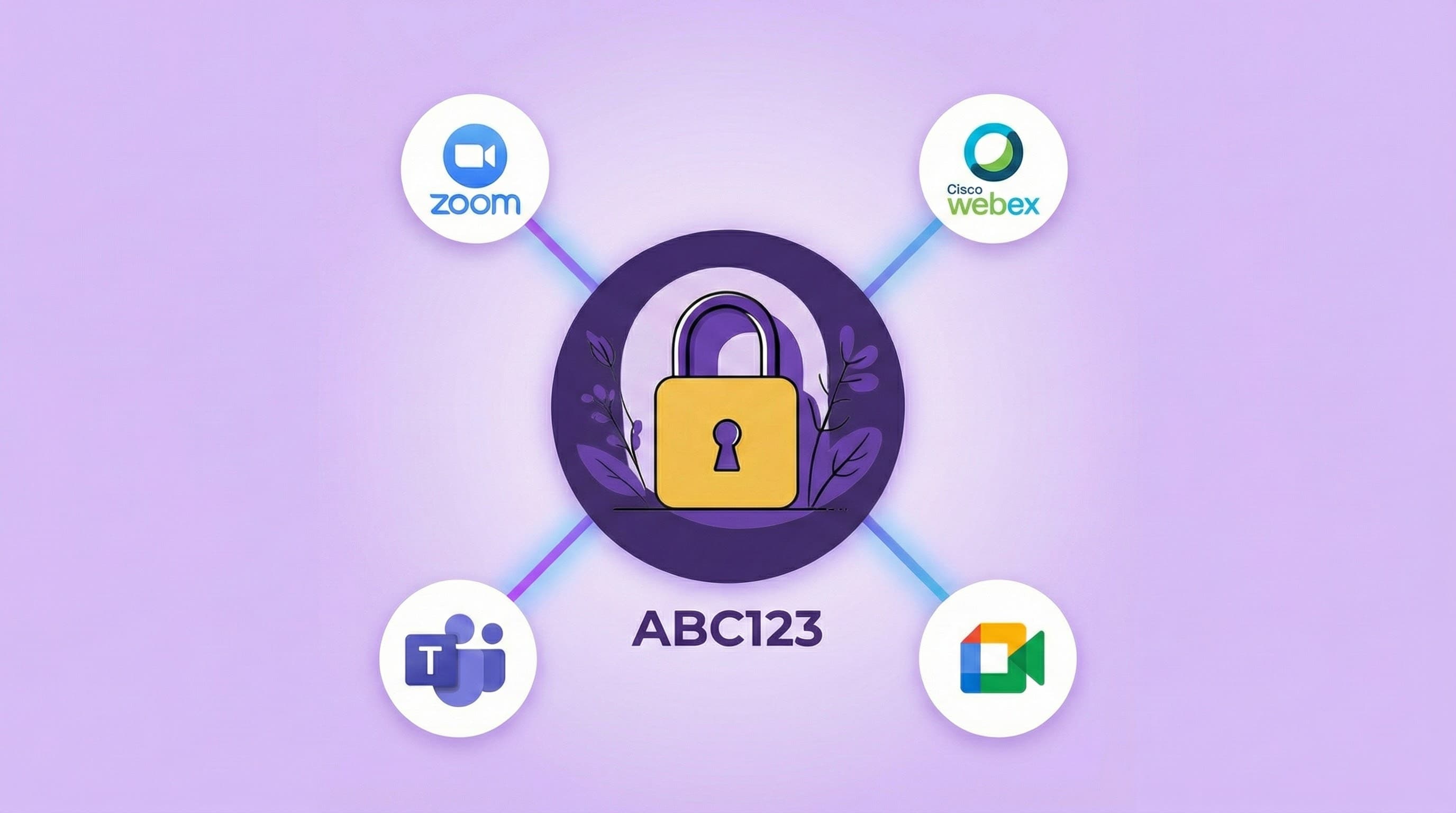
Here's a workflow problem every host knows too well:
You create a Focus Room. You generate a Zoom link. You share the room code in the chat. You paste the Zoom link. You wait for everyone to join both. Someone inevitably asks, "What's the link again?"
It's clunky. It's inefficient. And as of today, it's completely unnecessary.
We're rolling out Meeting Link Integration—a feature that turns your scattered workflow into a single, seamless step.
The Problem: Two Links, Twice the Friction
Let's be honest about how online sessions actually work:
The old flow:
- Create your Focus Room and get a room code
- Create your video meeting (Zoom, Google Meet, Teams, etc.)
- Copy the meeting link
- Share the room code with participants
- Share the meeting link with participants
- Hope everyone joins both
- Troubleshoot when they don't
What actually happens:
- Participants forget to install the extension before joining
- Someone loses the meeting link
- You're juggling two browser tabs explaining two different systems
- Half your group is in the video call, the other half is setting up Focus Room
- You spend 10 minutes on logistics instead of facilitating
Sound familiar?
This isn't a minor inconvenience—it's friction at the exact moment you need momentum. Every extra step is a chance for confusion, delay, and disengagement.
The Solution: One Code, One Flow, Zero Hassle
Here's how Meeting Link Integration changes everything:
The new flow:
- Create your Focus Room and add your meeting link (Zoom, Meet, Teams, anything)
- Share the room code
- That's it
When participants join your Focus Room, they're automatically redirected to your video meeting. No second link. No manual coordination. No chaos.
One code. One action. Everyone's connected.
How It Works
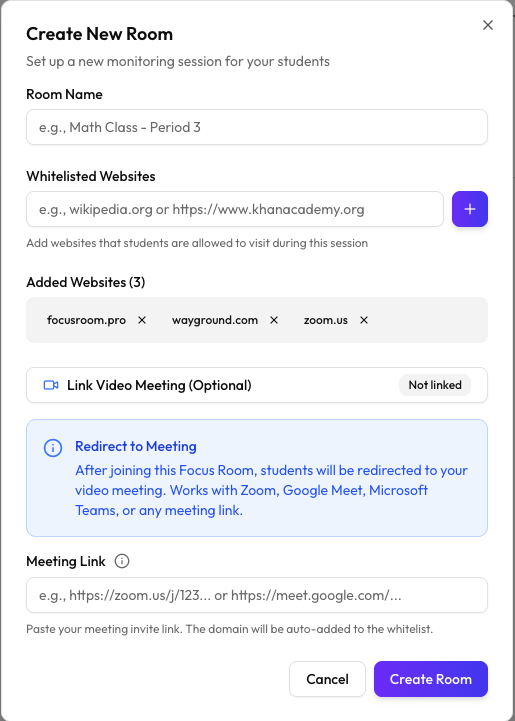
For Hosts: Add Your Meeting Link When Creating a Room
Creating a room now includes an optional "Meeting Link" field.
During room creation:
- Enter your room name as usual
- Configure your whitelist (or use defaults)
- NEW: Paste your video meeting link in the "Meeting Link" field
- Works with Zoom, Google Meet, Microsoft Teams
- Works with any video platform (Whereby, Jitsi, WebEx, you name it)
- Click "Create Room"
What happens behind the scenes:
- Focus Room automatically extracts the meeting domain (e.g.,
zoom.us,meet.google.com) - That domain is added to your room's whitelist
- When participants join your room, they're redirected to that link
For Participants: Join the Room, Join the Meeting
The participant experience is now ridiculously simple.
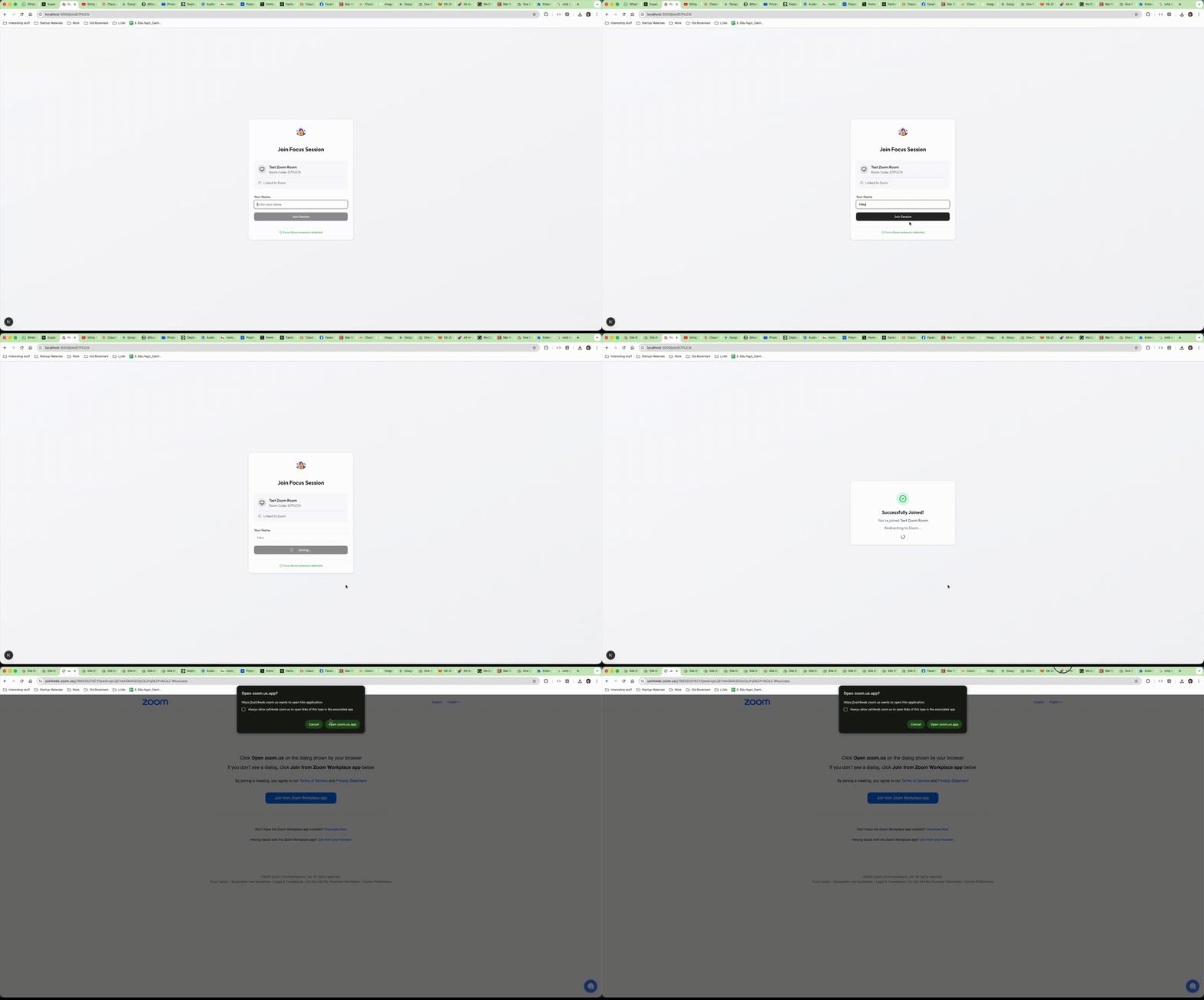
What participants do:
- Install the Focus Room extension (one-time setup)
- Open the extension and enter your room code
- Enter their name and click "Join Room"
- They're automatically redirected to your video meeting
What participants see:
- A smooth transition from Focus Room to your video platform
- The meeting link opens in a new tab automatically
- Their browser applies the room's whitelist during the session
- They're in the session and ready to focus
No more "Can you paste the link again?" No more confusion. Just instant access.
Why This Matters
1. Faster Session Starts
Every minute spent on logistics is a minute not spent on your actual content.
Before this feature, hosts routinely spent 5-10 minutes getting everyone connected and coordinated. That's 10% of an hour-long session wasted before you even begin.
Now? Participants join and they're in. Immediately. No coordination. No confusion.
2. Lower Barrier to Entry
The easier it is to join, the more likely participants will show up on time and ready.
One code is easier to remember than two links. One action is easier to execute than a multi-step process. Simple as that.
3. Less Support Burden
How many times have you had to troubleshoot "I can't find the Zoom link" or "Which link do I click first?"
This feature eliminates that entire category of support questions. Share the code. They're in.
4. Works with Any Meeting Platform
We didn't build this for Zoom. We didn't build it for Google Meet. We built it for whatever you're already using.
- Zoom? Supported.
- Google Meet? Supported.
- Microsoft Teams? Supported.
- Custom video platform for your organization? Supported.
- Self-hosted Jitsi instance? Supported.
If it's a URL, it works.
Real-World Use Cases
Online Teachers
Before:
"Alright everyone, the Zoom link is in the email I sent this morning. Also, make sure you have the Focus Room extension installed and enter code ABC123. Let me know if you can't find either of those."
After:
"Enter room code ABC123 in your Focus Room extension. See you in 2 minutes."
Corporate Trainers
Before:
- Email participants the Teams link
- Email participants the Focus Room code
- Send Slack reminder with both links
- Start the session 10 minutes late because people are still joining
After:
- Share Focus Room code once
- Start on time
Workshop Facilitators
Before:
Manage a complex setup doc with step-by-step instructions for joining the video call, installing the extension, entering the code, and navigating to the right platform.
After:
"Install the extension (link) and use code ABC123."
Technical Details: How Auto-Whitelisting Works
When you add a meeting link to your room, Focus Room intelligently extracts the domain and adds it to your whitelist.
Example:
- You paste:
https://zoom.us/j/123456789?pwd=abcdef - Focus Room extracts:
zoom.us - Your whitelist automatically includes:
zoom.us
Why this matters:
Participants need access to the meeting domain to join your session. Without auto-whitelisting, they'd hit a blocked site warning when trying to access Zoom/Meet/Teams.
This feature ensures the meeting link always works without you manually adding the domain.
What if I don't add a meeting link?
No problem. The feature is completely optional. If you don't need video integration, create your room exactly as you always have. Nothing changes.
Best Practices for Using Meeting Links
1. Add the Link Before Sharing the Code
The meeting link should be configured when you create the room. That way, when participants join, they're redirected immediately.
If you forget, you can edit the room and add the link later—but it's smoother to set it up from the start.
2. Use Persistent Meeting Links When Possible
If you run recurring sessions (same group, same time), use a persistent meeting URL (like Zoom personal meeting rooms or Google Meet recurring links).
Then you can reuse the same Focus Room with the same meeting link every session. Less setup, more consistency.
3. Test the Flow Before Your Session
Create a test room with your meeting link and join it yourself to verify the redirect works as expected.
Takes 30 seconds. Saves you from surprises during your actual session.
4. Communicate the New Flow to Participants
If your group is used to the old "two-link" system, let them know it's now just one code.
Quick message: "We've simplified joining—just use the Focus Room code and you'll be redirected to Zoom automatically."
What Participants Need to Know
Most participants won't even realize this is a new feature—it just works.
But if they ask, here's what to tell them:
- "When you join the Focus Room, you'll be automatically redirected to our video meeting."
- "No need to look for a separate Zoom/Meet link—it's built in."
- "Just enter the code, and everything else happens automatically."
Simple. Clear. Done.
This Is Just the Start
Meeting Link Integration is one piece of a larger vision: eliminating friction from online session management.
We're building Focus Room to be the single tool you need to coordinate, monitor, and facilitate productive virtual sessions. One dashboard. One workflow. Zero hassle.
What's next?
- Scheduled sessions with automatic start/end times
- Calendar integrations (Google Calendar, Outlook)
- Pre-session reminders sent to participants
- Post-session analytics emailed automatically
We're making focused online sessions effortless to run. One feature at a time.
Getting Started with Meeting Link Integration
The feature is live now for all Focus Room users.
To use it:
- Log into your Focus Room dashboard
- Click "Create New Room"
- Fill in the "Meeting Link" field with your Zoom/Meet/Teams URL
- Configure your whitelist as usual
- Create the room and share the code
That's it. Your next session just got 10 minutes faster.
We Want Your Feedback
This feature was built based on feedback from hosts who told us coordination was their biggest pain point.
Now we want to know: Is this solving the problem?
- Does the redirect work smoothly for your participants?
- Are there edge cases we should handle better?
- What other integrations would make your workflow easier?
Email us at [email protected]. We read every message.
Ready to simplify your session workflow?
- Create your first room with a meeting link: Focus Room Dashboard
- Questions? Email us at [email protected]
- Need help? Check our Getting Started Guide
One code. One flow. Zero hassle.
Welcome to easier online sessions.
— The Focus Room Team