
If you're running weekly study sessions or daily team standups in Focus Room, you know the drill: create room, set whitelist, share code, end session. Repeat tomorrow.
What if I told you there's a way to do this once and never again?
The Session Setup Tax
Let's do the math.
Creating a regular room takes:
- 30 seconds to name the room
- 45 seconds to add whitelist URLs
- 15 seconds to copy and share the room code
- Total: 90 seconds per session
If you run 5 sessions a week, that's 7.5 minutes weekly. Over a semester (16 weeks)? Two hours of pure setup work.
But time isn't the only cost.
Every new room means:
- Finding and re-entering the same whitelist URLs (was it "docs.google.com" or "drive.google.com"?)
- Sharing a new code with participants every single time
- Losing historical session data when you delete old rooms
- Zero visibility into patterns across multiple sessions
And when you're a corporate trainer managing weekly onboarding cohorts, or a teacher with 8 sections across 4 days? That setup tax compounds fast.
The Solution: What Are Sticky Rooms?
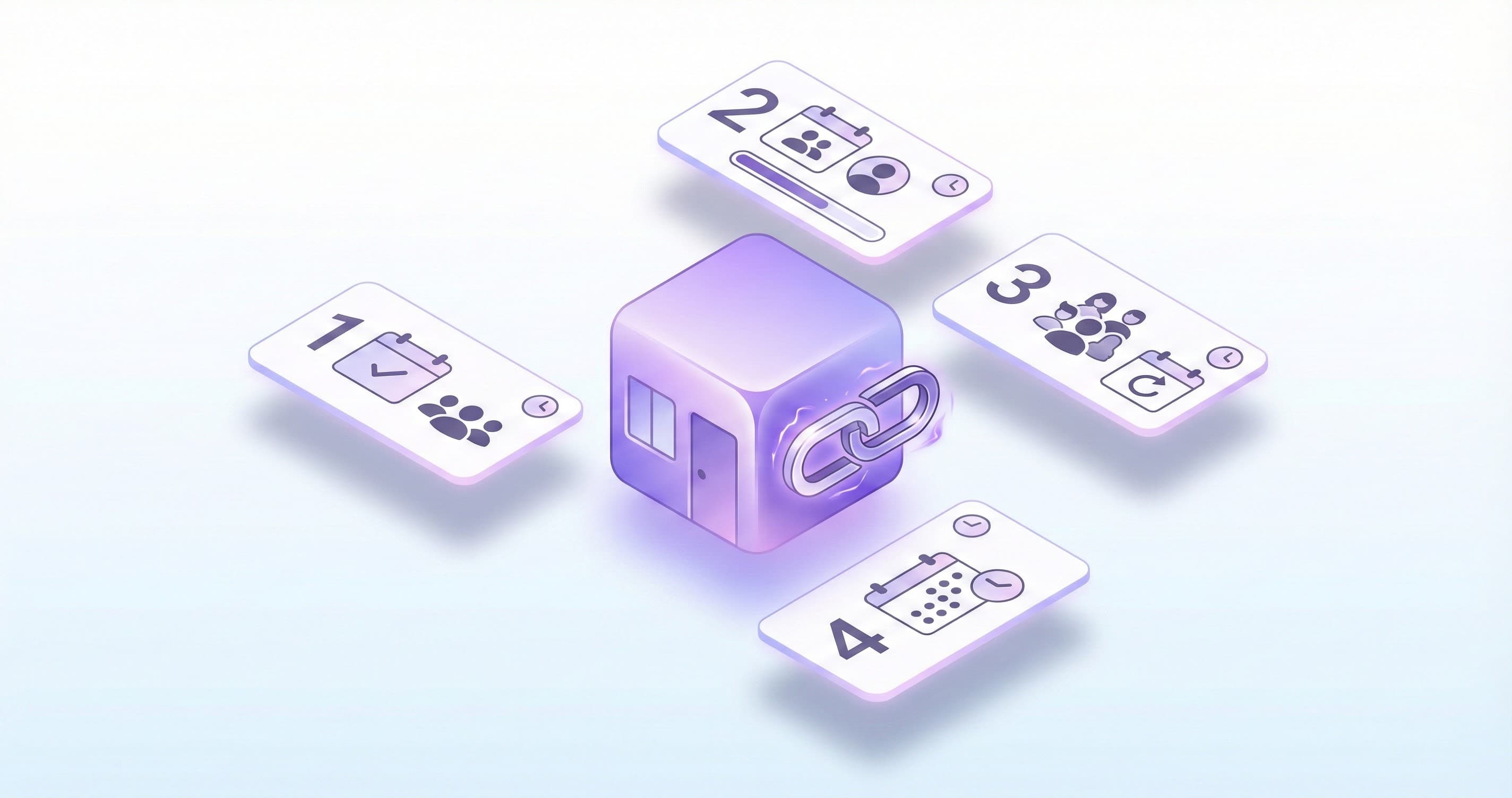
Sticky Rooms are persistent monitoring sessions that live beyond a single focus period.
Instead of creating a new room every time, you create one Sticky Room with your whitelist configuration and meeting link. That room stays active indefinitely. Each time you start a new monitoring session, Focus Room tracks it separately while keeping everything else intact.
One room. Unlimited sessions. Same code forever.
Think of it like your home. You don't rebuild your house every morning—you just start a new day in the same space. Sticky Rooms work the same way.
What Makes a Room "Sticky"?
When you create a Sticky Room (PRO tier only), you get:
- Permanent room code - Never changes, never expires
- Session-based tracking - Each monitoring period becomes Session 1, 2, 3...
- Preserved configuration - Whitelist and meeting link stay attached
- Per-session analytics - Violations, participants, and reports tracked separately
- Historical visibility - See trends across all your sessions in one place
Regular Rooms vs Sticky Rooms
| Regular Rooms | Sticky Rooms |
|---|---|
| One session per room | Multiple sessions per room |
| New code each time | Same code always |
| Combined reports | Reports per session |
| Manual recreation | Just "Start New Session" |
| No historical tracking | Full session history |
How It Works
For Hosts
Initial Setup (One Time):
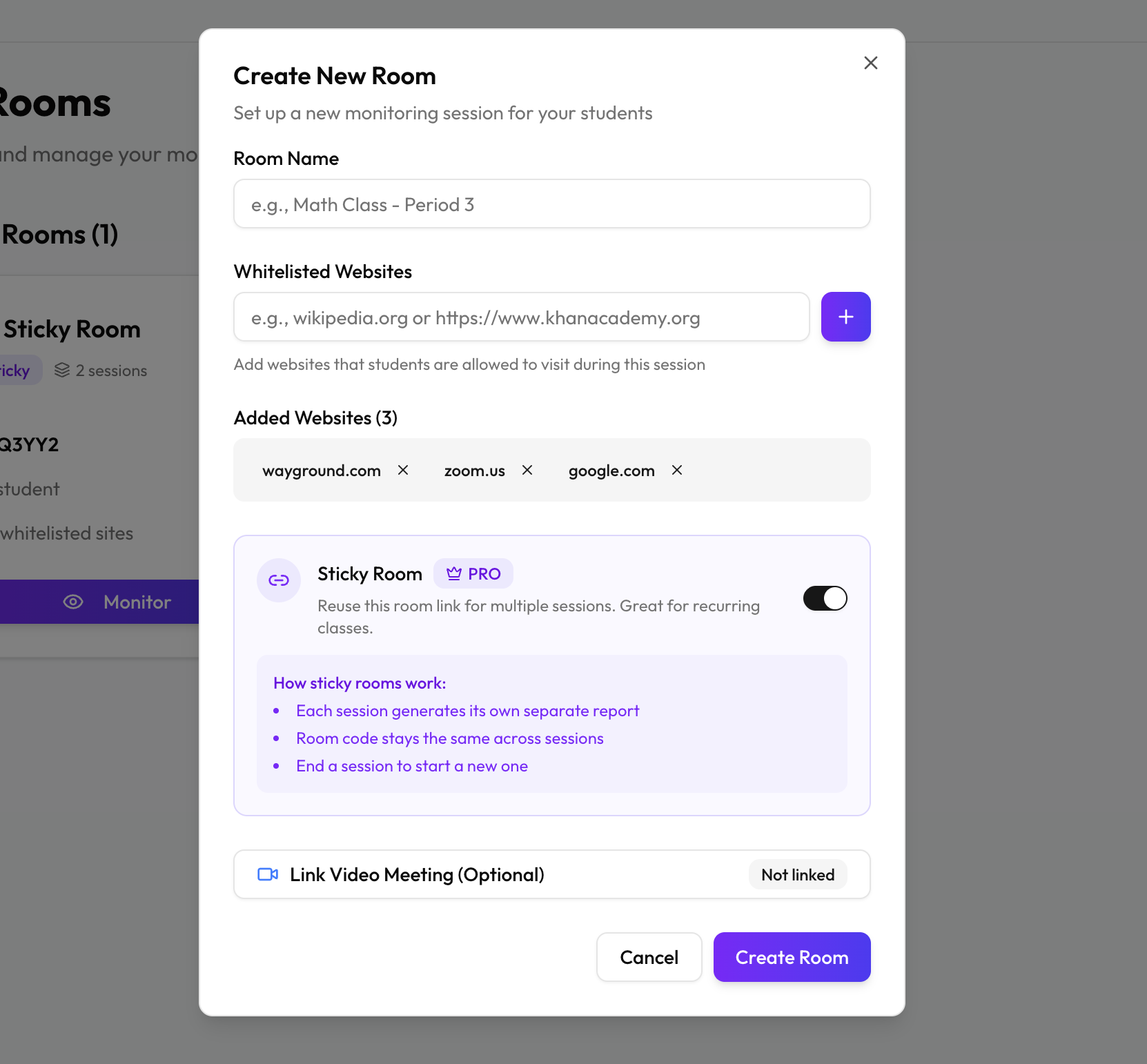
- Create a new room from your dashboard
- Toggle on "Make this a Sticky Room" (PRO feature)
- Name your room (e.g., "Monday Study Group")
- Add your whitelist URLs
- Add meeting link (Zoom, Google Meet, or Microsoft Teams) - optional but recommended
- Save
Your room is now live with a permanent code.
Every Subsequent Session:
- Open your Sticky Room
- Click "Start New Session"
- Share the same code with participants
- Monitor as usual
- Click "End Session" when done
Focus Room automatically creates Session 1, Session 2, Session 3... each with its own participant list, violation tracking, and Excel export.
Key Host Benefits:
- Same room code printed on handouts, syllabus, or calendar invites
- Whitelist configuration never needs updating (unless you want to change it)
- Meeting link auto-launches for participants who join via the browser extension
- Historical data shows attendance trends and repeat violators
- One dashboard to rule all sessions
For Participants
Nothing changes. Seriously.
Participants join with the same room code you shared in Week 1. Focus Room automatically places them in the current active session. They don't need to know if it's Session 1 or Session 47.
The browser extension works in both Chrome and Edge:
- Enter room code
- Enter name
- Start focus session
If you've attached a meeting link, participants can click to join the Zoom/Meet/Teams call directly from the extension.
Real-World Use Cases
1. Teachers: Semester-Long Tracking
Scenario: You teach AP Chemistry every Tuesday and Thursday, 8:00-9:30 AM.
Before Sticky Rooms:
- Create new room before each class (32 times per semester)
- Re-enter the same 12 whitelist URLs each time
- Students ask "what's today's code?" every. single. class.
- No way to see if the same student violates policies repeatedly
With Sticky Rooms:
- Create room once on Day 1
- Print code on syllabus and classroom poster
- Students memorize code by Week 2
- Track repeat offenders across 32 sessions
- Export semester-long violation trends for parent-teacher conferences
Time saved: 48 minutes per semester (90 seconds × 32 sessions)
2. Team Leads: Daily Standup Accountability
Scenario: You run daily 30-minute standups with 8 remote team members.
Before Sticky Rooms:
- Create room every morning at 8:55 AM
- Scramble to share code in Slack before 9:00 AM meeting
- Forget to whitelist your company's internal wiki every third day
- Delete rooms weekly to stay under the 5-room free tier limit
With Sticky Rooms:
- Create "Daily Standup" room once
- Add room code to calendar event description
- Meeting link auto-syncs with your Zoom recurring meeting
- Whitelist configuration matches your company's approved tools
- PRO tier means unlimited sessions (and you don't delete your history)
Time saved: 7.5 hours per year (90 seconds × 250 work days)
3. Study Groups: Sunday Sessions That Scale
Scenario: You coordinate a Sunday evening study group for 12 students preparing for the bar exam.
Before Sticky Rooms:
- Create new room every Sunday at 6 PM
- Text new code to group chat
- One student always shows up late and needs the code re-sent
- No data on who attended which sessions
With Sticky Rooms:
- Create "Bar Prep Sundays" room
- Pin code to group chat
- Late students already have the code
- Track attendance across all 16 weeks before exam
- Share violation data (e.g., "Twitter was accessed 47 times during study hours")
Time saved: 24 minutes across exam prep period
4. Corporate Trainers: Onboarding Cohorts
Scenario: You run week-long onboarding for new hires every month, Monday-Friday, 1-4 PM.
Before Sticky Rooms:
- Create 5 rooms per cohort (one per day)
- Email new code daily to 15 new hires
- Re-enter company whitelist (intranet, HR portal, training platform) 5 times
- Can't compare cohort performance month-over-month
With Sticky Rooms:
- Create "New Hire Onboarding" room once
- Share code in welcome email (never changes)
- Meeting link auto-populated for Zoom training sessions
- Compare Session 1-5 (January cohort) vs Session 6-10 (February cohort)
- Identify which training days have most violations (spoiler: it's always Friday)
Time saved per cohort: 7.5 minutes (90 seconds × 5 days) Annual time saved: 90 minutes (12 cohorts)
Session-Level Analytics: Why Separate Reports Matter
Regular rooms combine all participants and violations into one report. If you accidentally kept a room running across two different classes, your data is forever mixed.
Sticky Rooms track each session independently:
Per-Session Metrics:
- Start time and end time
- Number of participants
- Total violations (blocked + warnings)
- Most violated domains
- Excel export with session-specific data
Cross-Session Insights:
- Average participants per session
- Session-over-session violation trends
- Repeat participant tracking (same name across sessions)
- Peak violation times across all sessions
This separation matters for:
- Teachers: Grade policy compliance by class period, not by semester
- Team leads: Identify productivity patterns (e.g., Mondays have 3x more distractions)
- Study organizers: See which topics (mapped to sessions) correlate with focus issues
- Trainers: Compare cohort performance and identify curriculum gaps
Getting Started with Sticky Rooms
If You're Already a Focus Room User
- Upgrade to PRO if you haven't already
- Create your first Sticky Room from the dashboard
- Toggle "Make this a Sticky Room" during creation
- Add your meeting link (Zoom, Google Meet, or Microsoft Teams) if applicable
- Share the permanent code with your group
If You're New to Focus Room
- Sign up at focusroom.pro
- Choose PRO tier during onboarding (Sticky Rooms are PRO-only)
- Create your first room and enable Sticky Room
- Install the browser extension for Chrome or Edge and share it with participants
- Run your first session and experience the difference
Migration Tips
Moving from regular rooms to Sticky Rooms?
- Keep your existing whitelist - Copy URLs from old room to new Sticky Room
- Update your code references - Replace old codes in emails, syllabus, calendar with new permanent code
- Archive old rooms - Export historical data before deleting old single-session rooms
- Communicate the change - Tell participants the new code is permanent (no more "what's today's code?")
PRO Plan Benefits (Beyond Sticky Rooms)
Sticky Rooms are just one PRO feature. The full package includes:
PRO Tier:
- Unlimited active sessions (vs 1 on free tier)
- Up to 100 participants per session (vs 15 on free)
- Unlimited session duration (vs 1-hour limit on free)
- Unlimited data retention (vs 7 days on free)
- Sticky Rooms with unlimited sessions
- CSV export for data analysis
- Advanced analytics and trends
- Priority support
Why PRO is worth it:
- Break-even at a few sessions/month (time savings alone)
- Scales to 100 participants per room
- Professional features for serious focus management
- Keep all your historical data forever
Create Your First Sticky Room →
The Bigger Picture: Recurring Focus, Simplified
Sticky Rooms aren't just about saving 90 seconds per session.
They're about making recurring focus sessions feel effortless. When setup friction disappears, you're more likely to:
- Run consistent sessions (no "I'll skip today, setup takes too long" excuses)
- Enforce policies effectively (comprehensive historical data = better insights)
- Scale your focus practice (from weekly to daily without multiplying workload)
- Build habits that stick (participants memorize one code, reducing dropout)
The best productivity tools disappear into your workflow. Sticky Rooms do exactly that.
You create the room once. Share the code once. Then you focus on what matters: monitoring, analyzing, and helping your participants stay on task.
Start Your First Sticky Room Today
The next time you're about to create a room for tomorrow's session, ask yourself: will I run this again next week?
If the answer is yes, make it sticky.
Same code. Same whitelist. Same meeting link. Unlimited sessions.
Upgrade to PRO and Create Your Sticky Room →
Questions about Sticky Rooms? Email us at [email protected] or visit our support page.
Sticky Rooms are exclusive to PRO tier users. Cancel anytime.