

A Focus Room session report helps you answer three useful questions after an online class: who joined, which websites triggered events, and what should change before the next lesson. Start with participation, check the context behind blocked or warning events, then choose one concrete improvement.
The report is a record of browser-session activity. It cannot tell you whether someone understood the lesson, how hard they worked, or why they opened a particular link. Used alongside submitted work and a short conversation, it can help you find avoidable interruptions without turning every event into a disciplinary issue.
This guide walks through a practical review you can use after a tutoring session, coding workshop, or remote class.
Open the report for the right session
In your host dashboard, open Session Reports and choose the class you want to review. A regular room has a View Full Report link. For a sticky room, select the relevant session's View Report link; the report also provides a session selector.
Check the room name and session date before drawing conclusions. When you reuse a room every week, the same join code does not mean every report describes the same class.
Focus Room's report brings together participant records and website violations. The participant table lets you search by name, filter participants with or without violations, and sort by name, join time, or violation count. You can expand a participant's row to examine their events.
If you have not run your first session yet, start with Getting Started with Focus Room.
Check participation before counting violations
Begin with the participant list. Compare who joined with the people you expected to attend, then look at join time, time in the session, and status.
Those fields can guide a follow-up, but they need context:
- A late join might reflect an extension setup problem, a delayed invitation, or a late arrival.
- A disconnected status is a reason to check connectivity, not proof that someone chose to leave.
- Time in the session measures recorded participation, not time spent learning.
- A participant's display name may need clarification before you match it to your class list.
For example, if several learners joined well after your instructions began, the next class may need a short setup window before the first activity. You could send the room code earlier and ask everyone to confirm that the assignment opens before you start.
Avoid starting with a ranking of who had the most violations. First establish whether people could enter the session and reach their work.
Read website events as clues, with context
Focus Room records URLs and timestamps for blocked or warning violations during active sessions. In the report, expand a participant's row to inspect their recorded URLs and timestamps. To distinguish Blocked from Warning event types, use the Violations Detail sheet in the Excel export.
The report's Most Blocked Sites summary groups all recorded violation events by domain, including warnings. Treat it as a starting point for investigation, then check the individual URLs and their context rather than assuming every counted event was a block.
An event count is not a count of deliberate distractions. Repeated visits to one domain could come from a learner retrying a legitimate link, a sign-in redirect, or an off-task visit. You need the URL, timing, assignment, and learner's explanation to distinguish those possibilities.
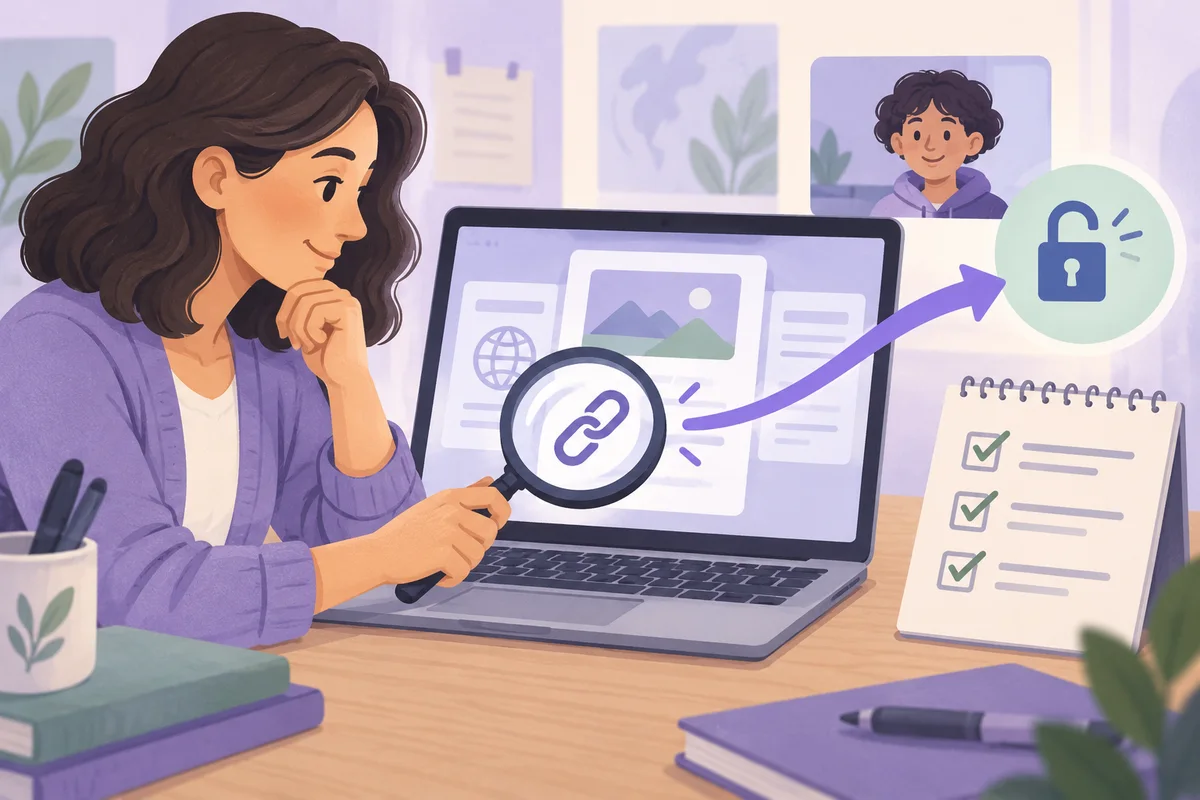
Use this sequence when a pattern stands out:
- Open the participant's event details and inspect the URL and timestamp.
- Compare the event with the resource or task you assigned at that point.
- Ask whether a sign-in step, linked reading, or submission page was missing from the whitelist.
- Check the link yourself using the learner's intended workflow.
- If the site was unrelated to the assignment, discuss the event privately and restate the session expectations.
Suppose a writing lesson sends learners to a shared document, but they need to sign in before opening it. A burst of events around the sign-in domain could reveal a setup gap. Check the workflow before deciding what the events mean.
For a step-by-step setup checklist, see How to Block Distracting Websites During Online Classes.
Turn the report into one change for the next class
Choose a change you can test. "Improve focus" is too broad to act on; "test the submission link with a participant before class" is specific.
Here are some possible interpretations and follow-ups. These are teaching examples, not findings from a customer report.
| What you notice | What to check | A possible next step |
|---|---|---|
| Several learners join late | Did everyone receive the code and install the extension? | Add a brief join-and-test window before instruction. |
| The same learning domain appears repeatedly | Was a required resource missing from the whitelist? | Test and add the required domain before the next class. |
| Events cluster when learners submit work | Does submission open a separate site or sign-in page? | Rehearse the complete submission flow. |
| One participant has repeated off-task events | What was happening at those times? | Have a private conversation and agree on a clearer work plan. |
| No violations are recorded | Did learners complete and understand the task? | Review their work and ask a learning question. |
When adjusting the whitelist, remember that Focus Room matches domains rather than restricting learners to one exact document URL. A parent domain can permit its subdomains. Add what the lesson needs, then test the actual links instead of assuming a pasted URL limits access to that single page.
For recurring classes, a sticky room can keep the join code familiar while you review each session separately. Reusing the room still requires checking that the next lesson's resources are allowed.
Export to Excel when you need a closer look
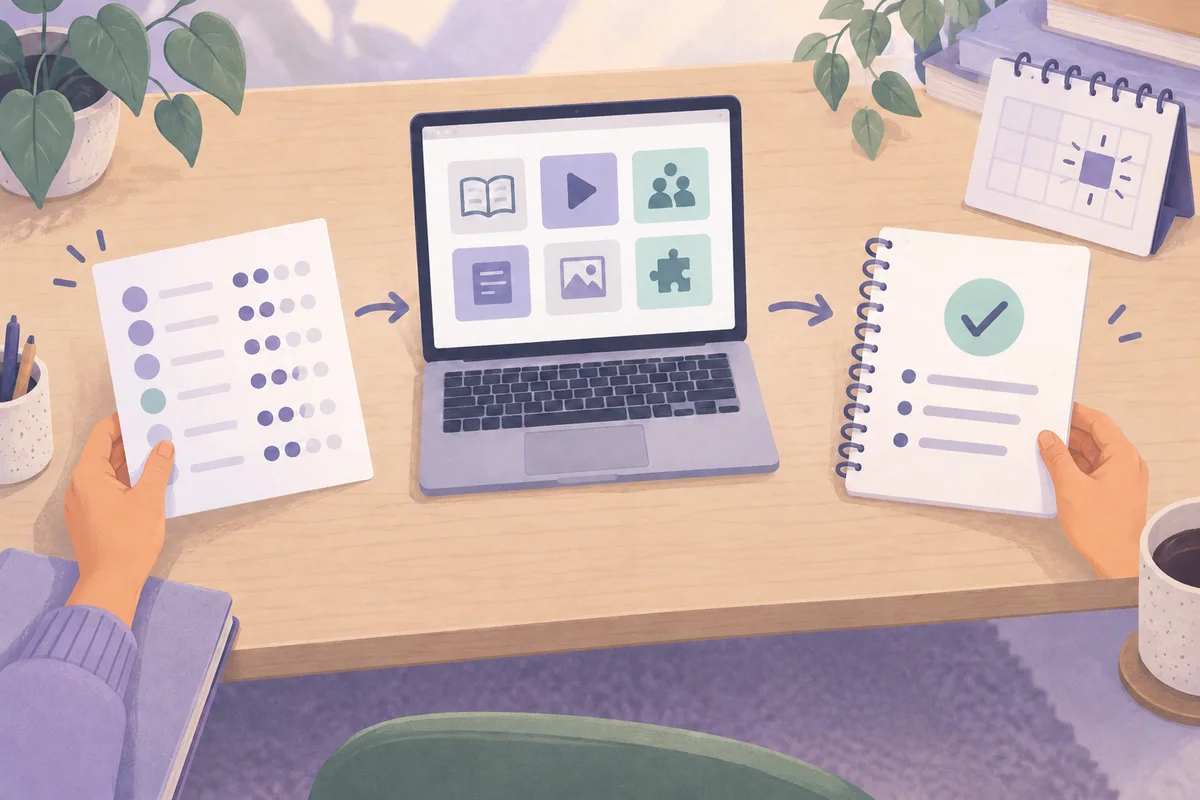
The report's Export Excel action creates a workbook with two sheets:
- Session Summary & Students contains session details and participant rows, including join and leave times, duration, status, and violation counts. Browser, device, and operating-system fields appear when available.
- Violations Detail contains participant names, event timestamps, URLs, violation types, and time since joining.
For a sticky room, select the intended session before exporting so the workbook describes the session you are reviewing.
An export is useful when you need to sort events in a spreadsheet or keep an authorized session record. If you only need to note that a submission domain was missing, a short planning note may be enough.
Exports contain participant names and event URLs. Store them according to your organization's rules and share them only with people who need the information. Do not put an identifiable class report in a public presentation or shared planning document.
Understand what the report cannot show
Focus Room applies website rules in the browser where a participant installed the extension and joined an active session. Participants use Chrome or Microsoft Edge on desktop. The extension does not provide device-wide control: another browser, another device, or a disabled extension is outside that enforcement boundary.
The report is also not a complete browsing history. Focus Room records blocked or warning events during active sessions; it does not track browsing outside those sessions. A report with no violations therefore does not prove that someone stayed attentive or completed the work.
Explain these boundaries before using the tool with a class. Our privacy and security guide and Privacy Policy provide further context about session data and retention.
A short post-class review checklist
Before closing the report, record four things:
- Participation: Who needs help joining or staying connected?
- Access: Did any intended resource trigger an event?
- Follow-up: Is there a question to discuss privately with a learner?
- Next lesson: What one change will you make and test?
A useful planning note might read: "Test the submission page before the next writing lesson; send the room code before instructions begin." It captures a practical improvement without copying individual event records into your lesson plan.
Ready to try this review cycle? Create a Focus Room account, run a session around a clear assignment, and use its report to prepare the next one.