
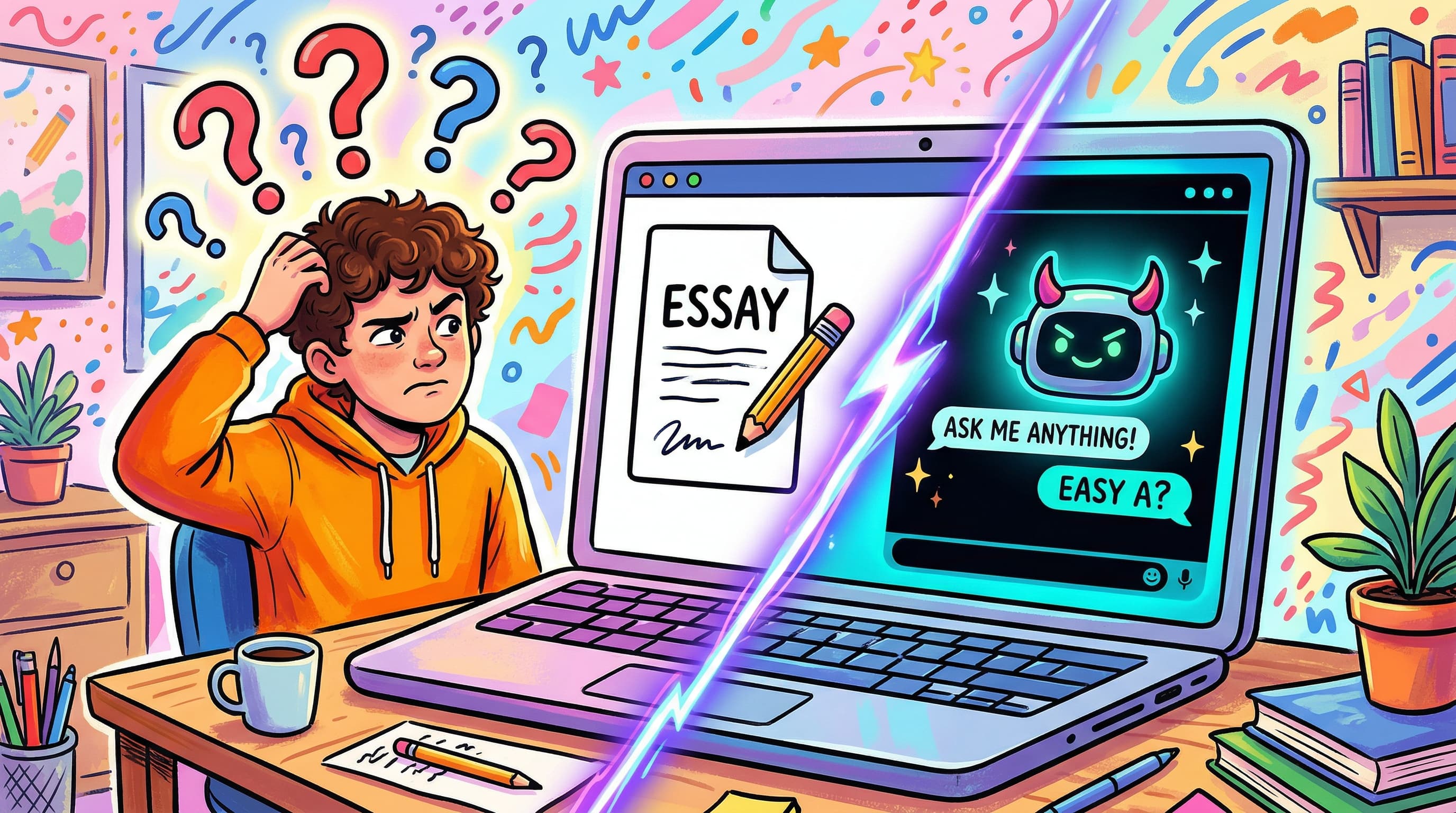
A student opens their laptop during a writing assignment. You glance at their screen—they're typing into ChatGPT instead of Google Docs.
This isn't a hypothetical anymore. It's Tuesday.
AI tools like ChatGPT, Gemini, and Copilot have become the default research assistant for most students. A 2026 study found that the vast majority of students have used generative AI at least once for schoolwork. Many use it daily.
The question is no longer whether students will use AI in your classroom. It's how you manage it so it doesn't replace the learning it's supposed to support.

The Problem Isn't AI — It's Unstructured Access
Banning AI outright doesn't work. Students access it on their phones, at home, or through workarounds you haven't thought of. And honestly, some AI use is genuinely productive—summarizing research, brainstorming outlines, explaining complex concepts.
The real problem is unstructured, unsupervised AI access during focused work time.
When students can toggle between their assignment and ChatGPT with zero friction, the temptation to shortcut their thinking is enormous. The distraction isn't just that they're off-task—it's that they're bypassing the cognitive effort that makes learning stick.
This is fundamentally different from a student browsing social media. A student on Instagram is clearly off-task. A student using ChatGPT to "help with their essay" looks productive while potentially learning nothing.
Why Traditional Monitoring Falls Short
Most classroom management software was designed to block categories of websites—social media, gaming, entertainment. They weren't built for a world where the most distracting tool is also the most useful one.
The challenge with AI tools:
- They're not clearly "bad" or "off-limits" — context determines whether use is appropriate
- Many schools actively encourage AI literacy, making blanket bans contradictory
- Students use AI across dozens of interfaces — ChatGPT, Gemini, Claude, Perplexity, Bing Chat, and countless wrappers
- AI is embedded in tools students legitimately need (Google Docs, Notion, even search engines)
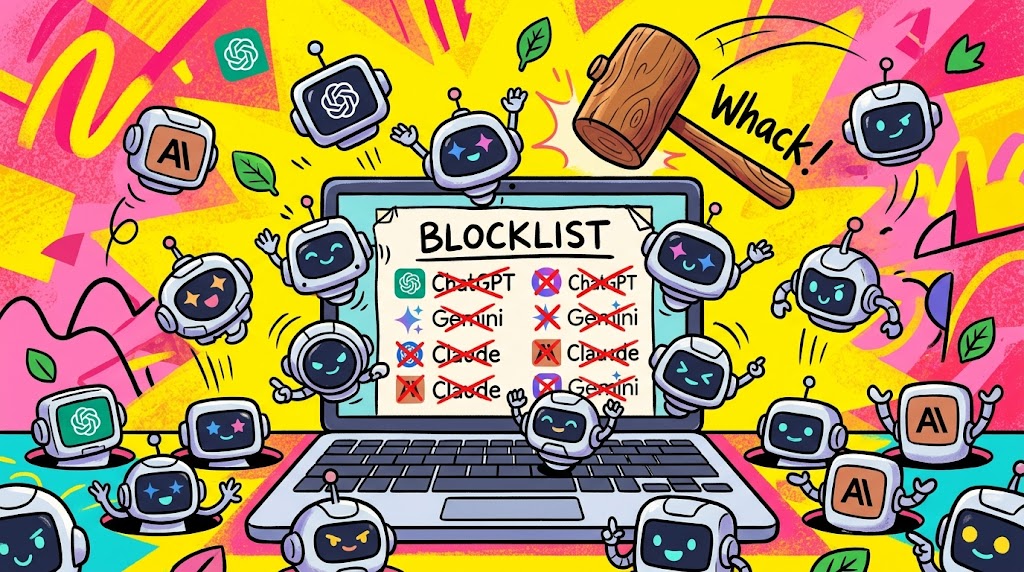
You can't just add "chat.openai.com" to a blocklist and call it handled. The landscape is too fragmented and evolving too fast.
A Better Approach: Structured AI Sessions
Instead of trying to block AI everywhere, create clear boundaries around when and how AI is allowed during class.
Step 1: Define AI-Allowed vs. AI-Free Time
Split your sessions explicitly:
- AI-Free blocks: Students work independently. All AI tools are blocked via whitelist. This is where critical thinking, writing, and problem-solving happen.
- AI-Allowed blocks: Students can use AI tools with guidance. This is where they learn to prompt effectively, evaluate AI output, and use it as a starting point rather than a finished product.
Making this explicit removes the gray area. Students know exactly what's expected in each phase.
Step 2: Use Whitelists, Not Blocklists
Blocklists are a losing game—new AI tools launch weekly. Instead, flip the model: only allow the specific sites students need for the current task.
Working on a research paper? The whitelist might include:
scholar.google.com
jstor.org
docs.google.com
your-school-library.edu
Everything else—including AI chat interfaces—is blocked by default. Not because AI is bad, but because this particular task requires independent thinking.
This is exactly how Focus Room works. You set a whitelist of approved sites when creating a session, and the extension enforces it across all participants. No cat-and-mouse with blocklists.
Step 3: Make AI Use Visible
When you do allow AI, make it part of the assignment rather than a secret shortcut:
- Require students to share their prompts. "Show me the prompts you used and explain why you chose them."
- Assign AI critique work. "Use ChatGPT to generate an answer, then identify three things it got wrong or oversimplified."
- Log AI interactions. Some teachers require students to paste their AI conversations into a shared doc alongside their final work.
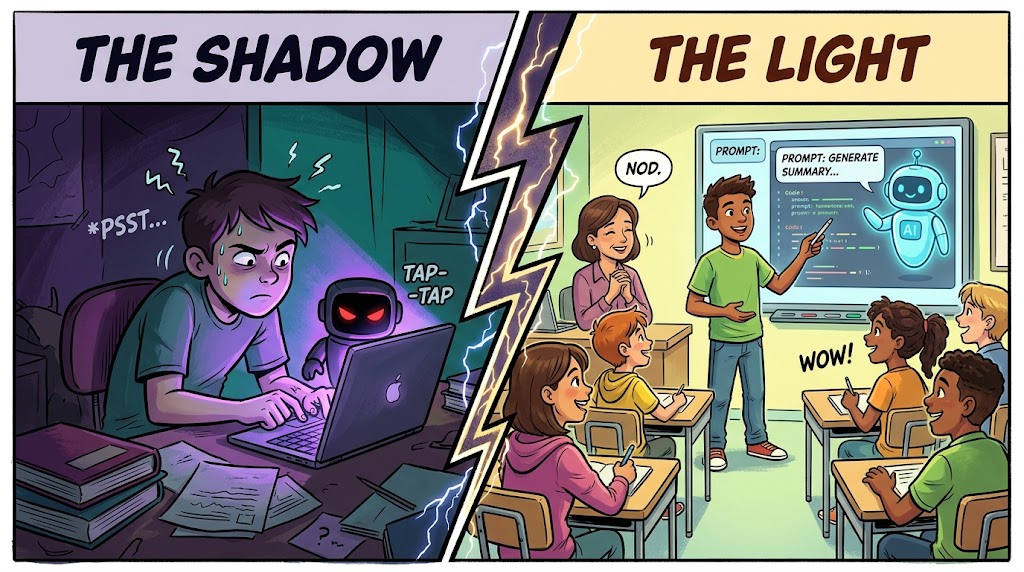
When AI use is visible and structured, it becomes a learning tool. When it's invisible, it becomes a crutch.
Practical Classroom Strategies
The "Think First, AI Second" Framework
- Students attempt the problem independently for 15-20 minutes (AI blocked)
- They write down where they got stuck
- AI tools are unlocked for a defined period
- Students must document what AI contributed vs. their own thinking
- Final submission requires a reflection on what they learned from each phase
This framework preserves the productive struggle that creates real learning while still teaching students to use AI effectively.
The Whitelist Rotation
Different activities need different tools. Rotate your whitelist based on the task:
Activity | Whitelisted Sites | AI Status |
|---|---|---|
Timed essay writing | Google Docs only | Blocked |
| Research phase | Scholar, JSTOR, library portals | Blocked |
| AI literacy lesson | ChatGPT, assignment doc | Allowed |
| Coding practice | IDE, docs, Stack Overflow | Blocked |
Brainstorming with AI | AI tool + shared whiteboard | Allowed |
Violation Tracking Without Surveillance Culture
Students will occasionally access blocked sites—intentionally or accidentally. The goal isn't zero violations. It's creating awareness.
Focus Room tracks when participants access sites outside the whitelist. This data is visible to the session host, which means you can have informed conversations:
- "I noticed you tried to access ChatGPT during the independent writing block. What were you looking for?"
- "Three students accessed AI tools during the test. Let's talk about why the boundary exists."
This is very different from punitive surveillance. It's accountability—gentle, transparent, and educational.

Setting Up AI-Managed Sessions with Focus Room
Here's a step-by-step workflow for running an AI-managed classroom session:
1. Create a Focus Room session
Go to Focus Room and create a new room. Name it something clear: "Period 3 — Essay Writing (No AI)" or "Research Sprint — AI Allowed."
2. Set your whitelist based on the activity
Only include what students genuinely need. When in doubt, leave it off—you can always add sites during the session.
3. Share the room code
Give students the code to join. They install the Chrome extension (also available for Microsoft Edge) and enter the code.
4. Run the session
Monitor the violation feed in real-time. You don't need to watch every screen—the system flags when someone goes off-whitelist.
5. Debrief
After the session, review the violation summary. Use it as a teaching moment, not a disciplinary tool.
For a complete walkthrough, see our Getting Started guide.
What About Students Who Need AI for Accessibility?
Some students use AI tools as legitimate accessibility aids—text-to-speech, language translation, writing assistance for learning disabilities. This is a valid and important use case.
The whitelist approach handles this naturally:
- Create a separate whitelist profile that includes necessary AI tools for students with accommodations
- Or add specific AI tools to the main whitelist when the activity allows it
- Document which students have AI access as part of their accommodation plan
The key is that the decision is intentional and documented, not a blanket free-for-all.
The Bigger Picture: Teaching AI Literacy
Managing AI distractions is a short-term problem. The long-term goal is teaching students when and how to use AI effectively—a skill that will matter for the rest of their careers.
The structured approach works because it does both simultaneously:
- AI-free blocks develop independent thinking and cognitive resilience
- AI-allowed blocks develop prompting skills, critical evaluation, and tool literacy
- The boundary between them teaches judgment—knowing when to reach for a tool vs. when to think harder
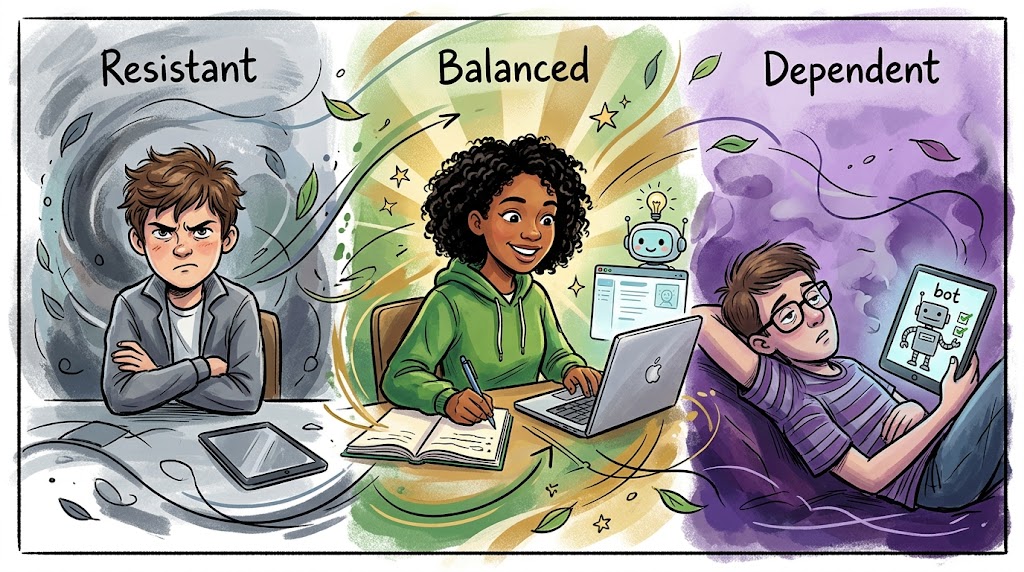
Students who learn to manage their own AI use will outperform those who either avoid it entirely or depend on it for everything.
Frequently Asked Questions
Won't students just use AI on their phones? They might. The whitelist approach works best on school-managed devices. For personal devices, the social accountability of being in a monitored session still reduces casual AI use significantly. Combine with a clear phone policy for best results.
Should I ban AI completely for assessments? For formal assessments, yes—blocking AI tools via whitelist during tests is reasonable and enforceable. For formative work, structured AI access is more valuable than a total ban.
How do I explain this to parents? Frame it as AI literacy, not AI restriction. "We're teaching students when to use AI tools and when to think independently. During focused work time, we limit access to help them develop their own skills." Most parents appreciate this nuance. For more on how we handle privacy and transparency, see our dedicated guide.
What if my school already uses GoGuardian or Securly? Those tools are great for school-wide web filtering. Focus Room complements them by giving individual teachers control over per-session whitelists—more granular and flexible than district-level policies. See our detailed comparison.
Does this work for remote or hybrid classes? Absolutely. Focus Room was built for remote sessions. Students join with a code from anywhere, and the whitelist enforces regardless of location.
Start Managing AI in Your Classroom Today
You don't need to figure out the entire AI-in-education debate. You just need clear boundaries for your next session.
Create a free Focus Room and set up your first AI-managed session. Define a whitelist, share the code with your class, and see how structured access changes the dynamic.
The students who learn to focus without AI when it matters—and use it skillfully when it helps—will be the ones who thrive.
Have questions about managing AI in your classroom? Email us: [email protected]
— The Focus Room Team