

Choosing a classroom management tool in 2026 feels like choosing a phone plan—too many options, confusing pricing, and features you're not sure you'll actually use.
We've tested and compared the most popular tools teachers use to manage online and hybrid classrooms. This guide cuts through the marketing and tells you what each tool actually does well, where it falls short, and who it's best for.
No affiliate links. No sponsored picks. Just an honest breakdown.
What to Look for in a Classroom Management Tool
Before the comparison, here's what actually matters:
Session-level control vs. always-on monitoring. Some tools run 24/7 on student devices. Others activate only during class time. The right choice depends on your school's philosophy and your students' age.
Whitelist vs. blocklist approach. Blocklists try to keep up with every distracting website (impossible). Whitelists only allow what students need (simpler, more effective). Most modern tools support both.
Ease of setup. If it takes 30 minutes and an IT department to start a session, teachers won't use it. The best tools are teacher-controlled with minimal setup.
Privacy posture. Parents and administrators increasingly care about what student data is collected, stored, and visible. Transparency matters.
Price. School budgets are tight. Free tiers and per-teacher pricing are increasingly common.
The Tools Compared
1. Focus Room — Best for Session-Based Focus Management
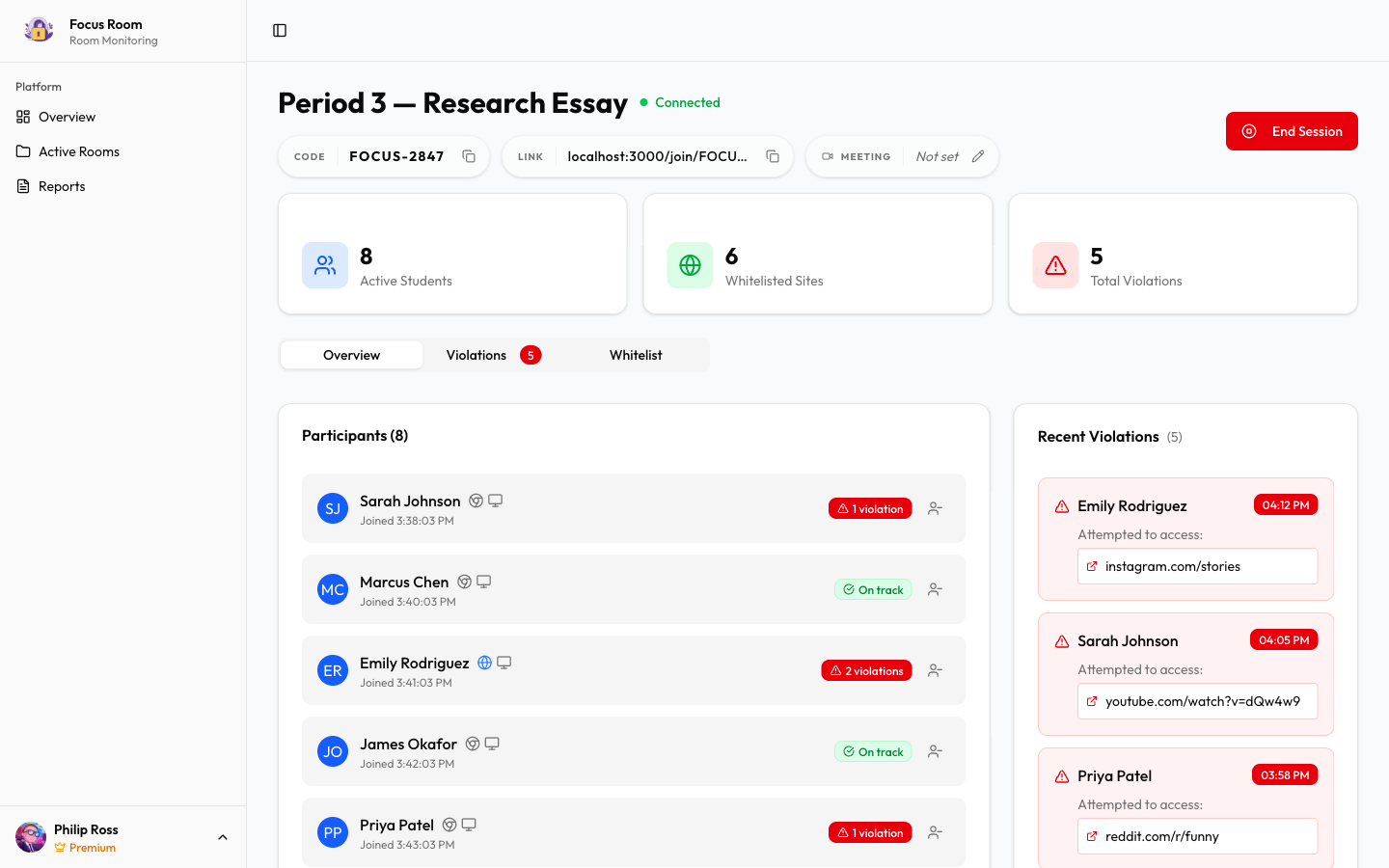
Best for: Teachers who want per-session control with whitelist enforcement and minimal setup.
Focus Room takes a different approach than traditional classroom management software. Instead of always-on monitoring, it creates focused sessions with specific whitelists—students join with a room code and only approved sites are accessible during the session.
Key features:
- Whitelist-based site control per session
- Room codes for quick student joining
- Real-time violation tracking (who accessed what, when)
- Works on Chrome and Microsoft Edge
- Session reports with violation summaries
- Sticky rooms — reuse room configurations across sessions
- Meeting link integration with Zoom, Google Meet, and Teams
What teachers like:
- Zero IT department involvement — teachers manage everything
- Students install a browser extension and join with a code
- Whitelist approach is simpler and more secure than trying to block every bad site
- Session-based model respects student privacy outside class time
- Free tier available for getting started
Limitations:
- Browser extension required (doesn't work if students switch to an unmanaged browser)
- Designed for session-based focus, not 24/7 device management
- No screen viewing — focuses on web access control rather than screen surveillance
Pricing: Free to start. Pro plans available for advanced features.
Best for: Online classes, virtual study groups, bootcamps, tutoring sessions, and any scenario where you need focused sessions with clear web boundaries.
2. GoGuardian Teacher — Best for Chromebook-Heavy Schools
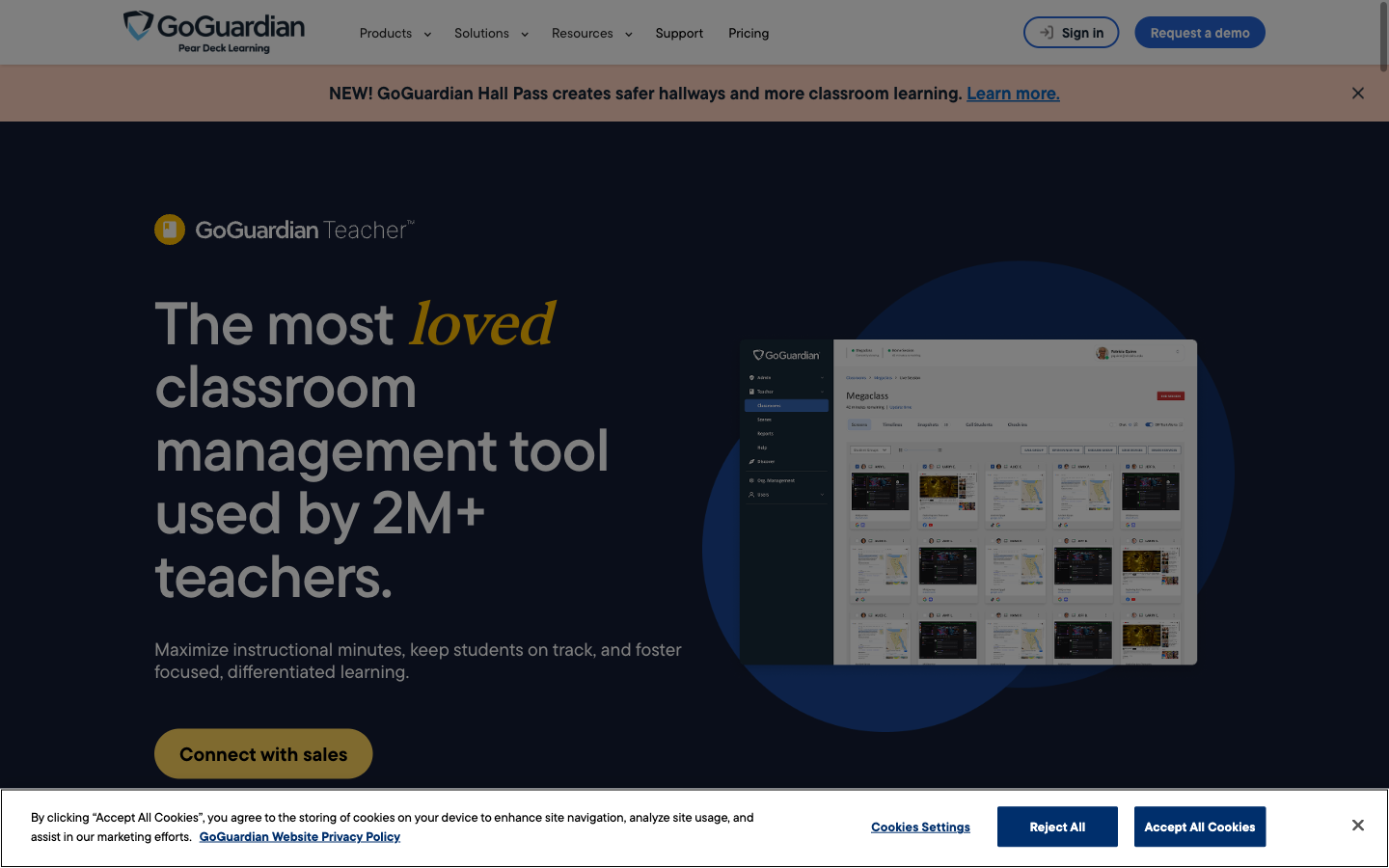
Best for: K-12 schools with 1:1 Chromebook programs and Google Workspace integration.
GoGuardian is the heavyweight in K-12 classroom management. It's deeply integrated with Google's ecosystem, making it the natural choice for schools that run on Chromebooks and Google Workspace.
Key features:
- Real-time screen viewing and thumbnail monitoring
- Website blocking and filtering
- Tab management (close tabs remotely)
- "Scenes" — pre-built website access profiles
- Chat with individual students
- Integration with Google Classroom
What teachers like:
- Deep Chromebook integration — works seamlessly on school-managed devices
- Screen viewing lets you see exactly what every student is doing
- "Scenes" make switching between activity profiles quick
- Mature product with years of refinement
Limitations:
- Requires school-level deployment and Google Admin console setup
- Chrome OS / Chrome browser focused — limited support for other platforms
- Always-on monitoring raises privacy concerns for some families
- Pricing requires school/district contract (no individual teacher plans)
- Can feel surveillance-heavy, which impacts student trust
Pricing: Per-student annual licensing. Contact sales for quotes. Typically $5-10 per student per year.
Best for: Schools already invested in the Google/Chromebook ecosystem with IT support for deployment.
For a detailed comparison, see our Focus Room vs GoGuardian vs Securly breakdown.
3. Securly Classroom — Best for District-Wide Deployment
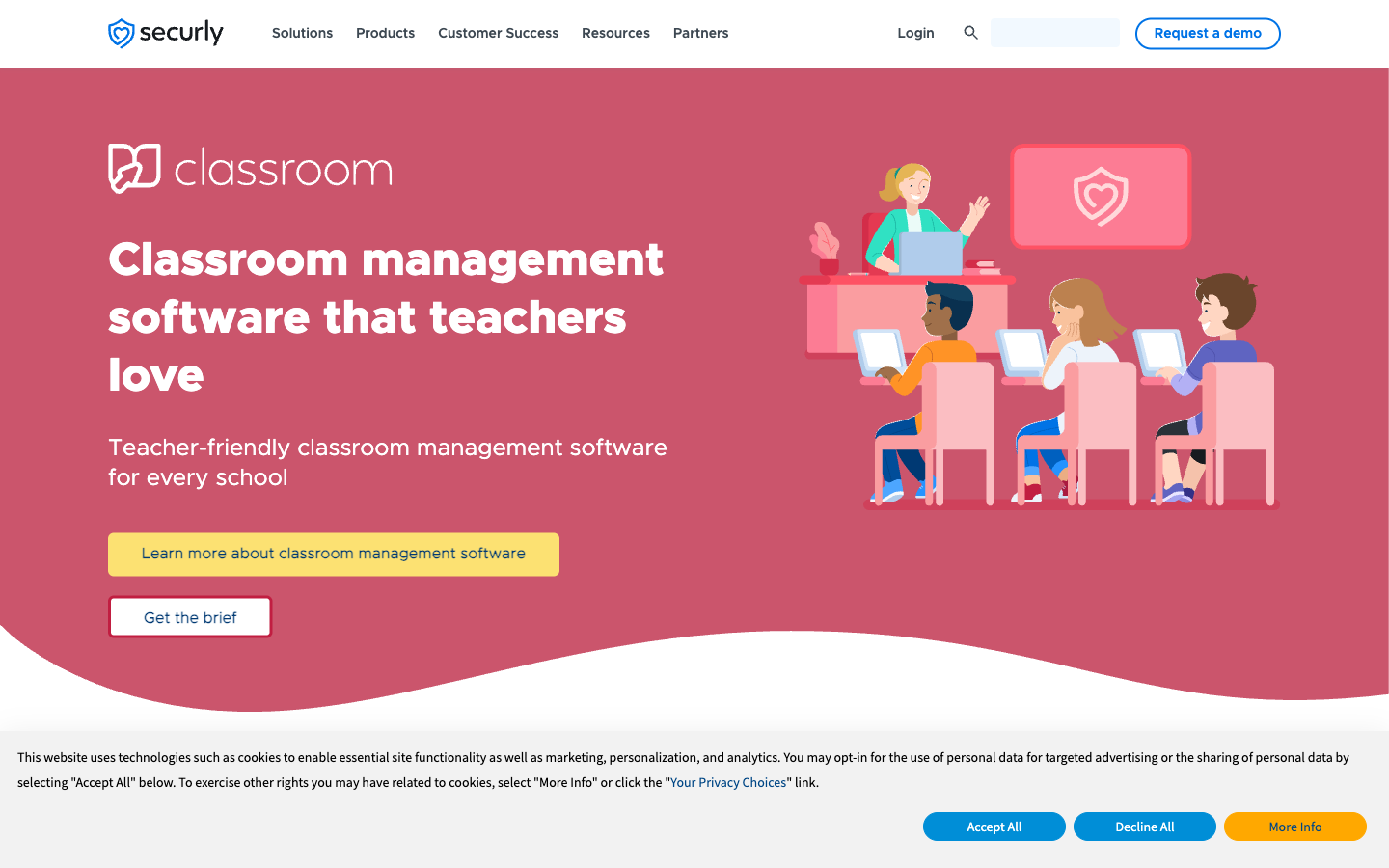
Best for: Districts that want unified web filtering with classroom management layered on top.
Securly started as a web filter and expanded into classroom management. Its strength is combining district-level internet safety with teacher-level classroom control in one platform.
Key features:
- Cloud-based web filtering (works on any network)
- Teacher dashboard for real-time monitoring
- Screen viewing thumbnails
- Website blocking/allowing during class
- AI-powered flagging for self-harm and bullying content
- Parent portal (Securly Home) for home visibility
What teachers like:
- District-wide filtering + classroom tools in one platform
- AI safety features that flag concerning content
- Parent portal bridges school and home monitoring
- Works across Chromebooks, Windows, and Mac
Limitations:
- Primarily a district/school purchase — individual teachers can't set it up alone
- Complex deployment requires IT coordination
- Teacher interface can feel overwhelming with feature density
- Monitoring capabilities may concern privacy-minded parents and older students
Pricing: District-level contracts. Contact for pricing. Typically bundled with web filtering.
Best for: Districts wanting a single vendor for web filtering and classroom management.
4. Dyknow — Best for Windows and Mixed-Device Classrooms
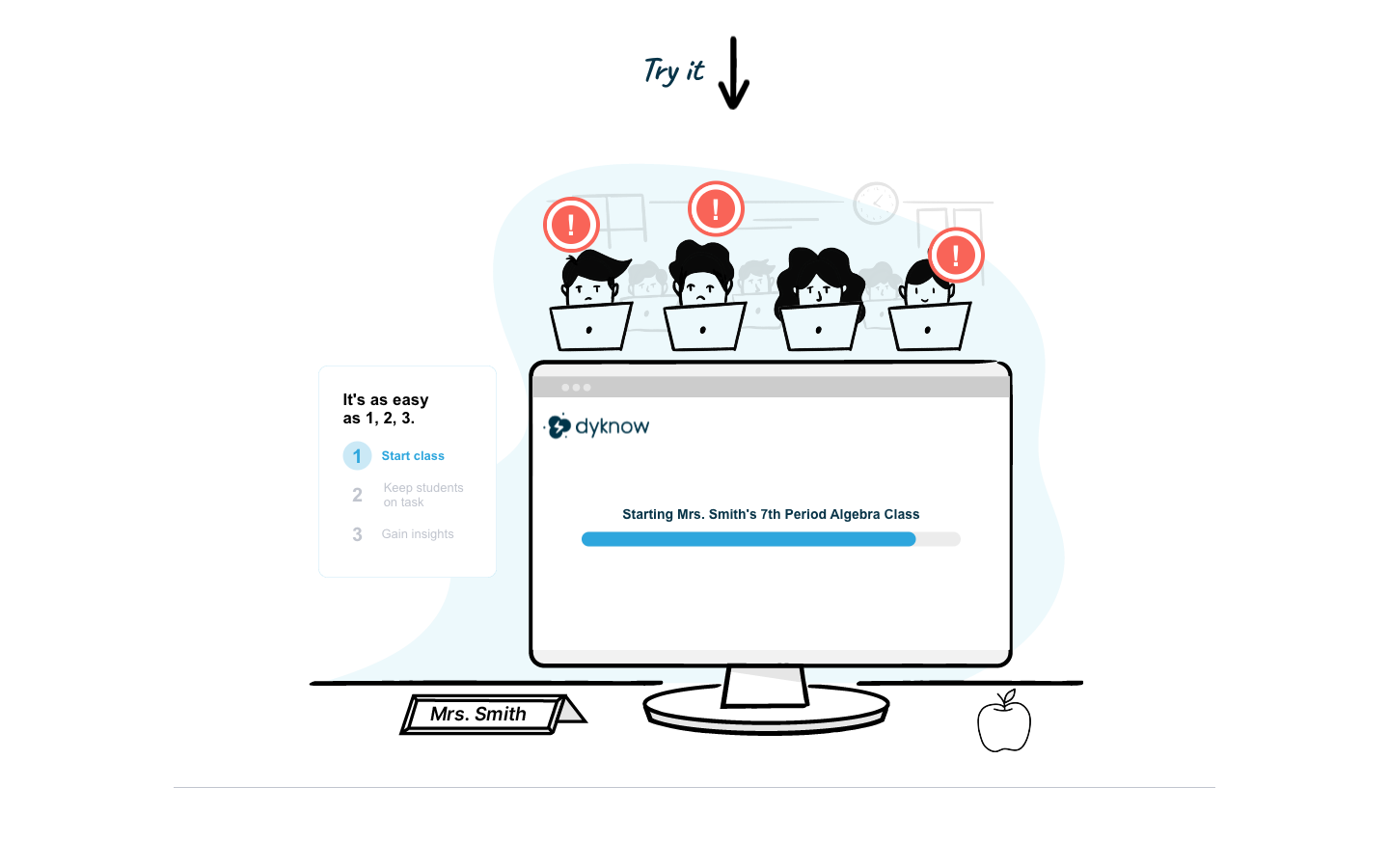
Best for: Schools with Windows devices or a mix of Chromebooks, Windows, and Macs.
Dyknow positions itself as the cross-platform alternative to GoGuardian. If your school uses a mix of device types, Dyknow provides consistent classroom management across all of them.
Key features:
- Screen monitoring across Chromebook, Windows, Mac, and iPad
- Website and application blocking
- Screen lock and attention mode
- Tab and app usage analytics
- Device-agnostic management
What teachers like:
- True cross-platform support — consistent experience regardless of student device
- Application blocking (not just websites) — useful for games installed on devices
- Clean teacher dashboard with quick actions
- Works without Google Workspace dependency
Limitations:
- Less brand recognition than GoGuardian or Securly
- Requires device agents installed by IT
- Smaller ecosystem of integrations
- Screen monitoring still raises the same privacy considerations
Pricing: Per-student annual licensing through school purchase.
Best for: Schools with heterogeneous device environments (Windows + Chromebook + Mac).
5. LanSchool — Best for In-Person Computer Labs
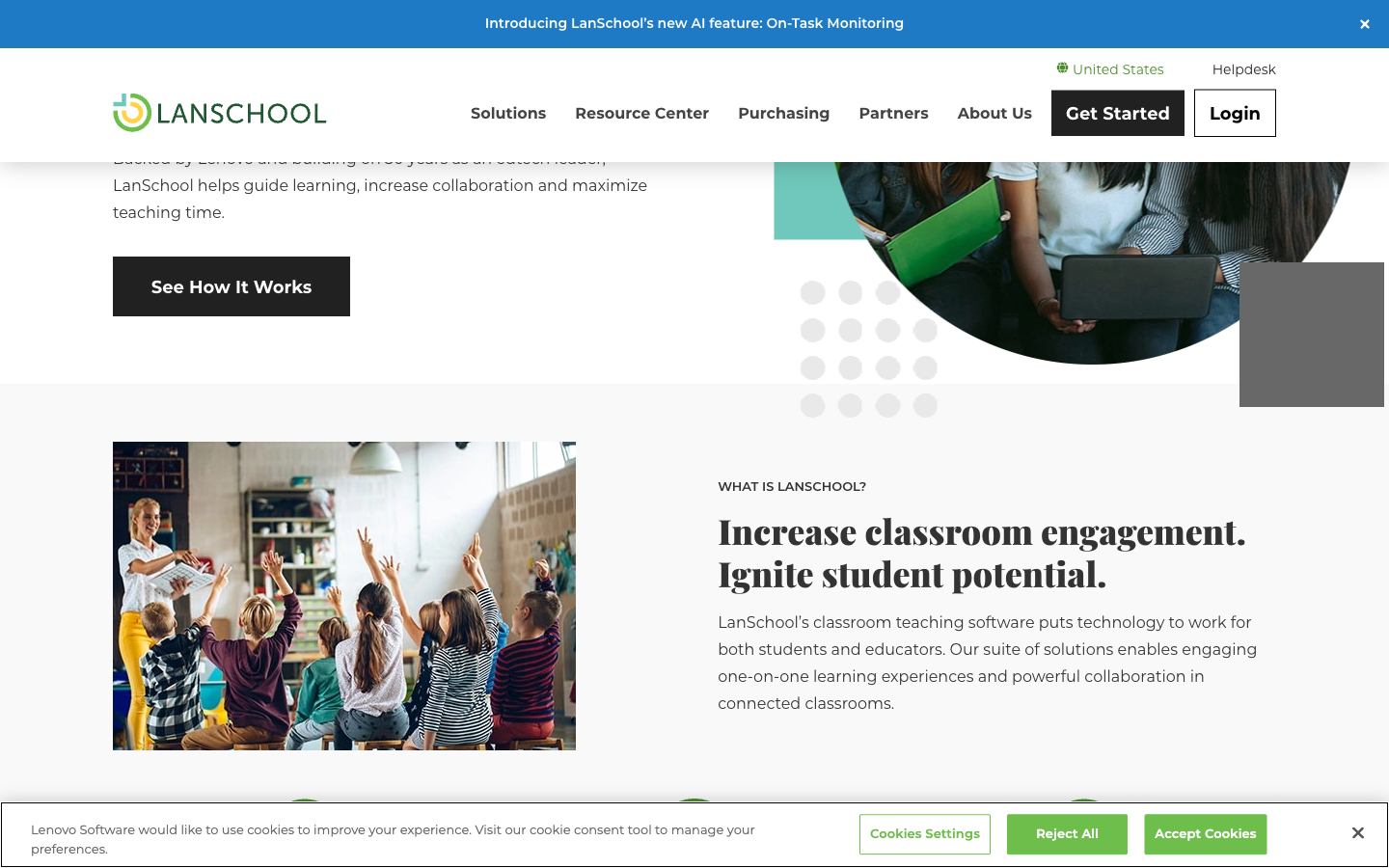
Best for: Schools with dedicated computer labs or in-person 1:1 classrooms.
LanSchool has been around since the 1980s and remains popular for in-person classroom management. Its LanSchool Air product brings cloud-based features for remote scenarios, but its strength remains on-premises management.
Key features:
- Screen monitoring and broadcasting
- Push websites to student screens
- Limit internet access and applications
- Screen lock and blank screens
- Class roster integration
- Teacher screen sharing/broadcasting
What teachers like:
- Mature, reliable product with decades of refinement
- Screen broadcasting is great for demonstrations
- Strong on-premises capabilities for lab environments
- Both cloud (Air) and on-premises options
Limitations:
- Cloud product (Air) is less mature than competitors
- Interface feels dated compared to newer tools
- Setup complexity for the on-premises version
- Less suited for bring-your-own-device scenarios
Pricing: Per-student annual licensing. Contact Lenovo (current owner) for quotes.
Best for: Schools with traditional computer labs and in-person instruction.
6. Blocksi — Best for Schools on a Budget
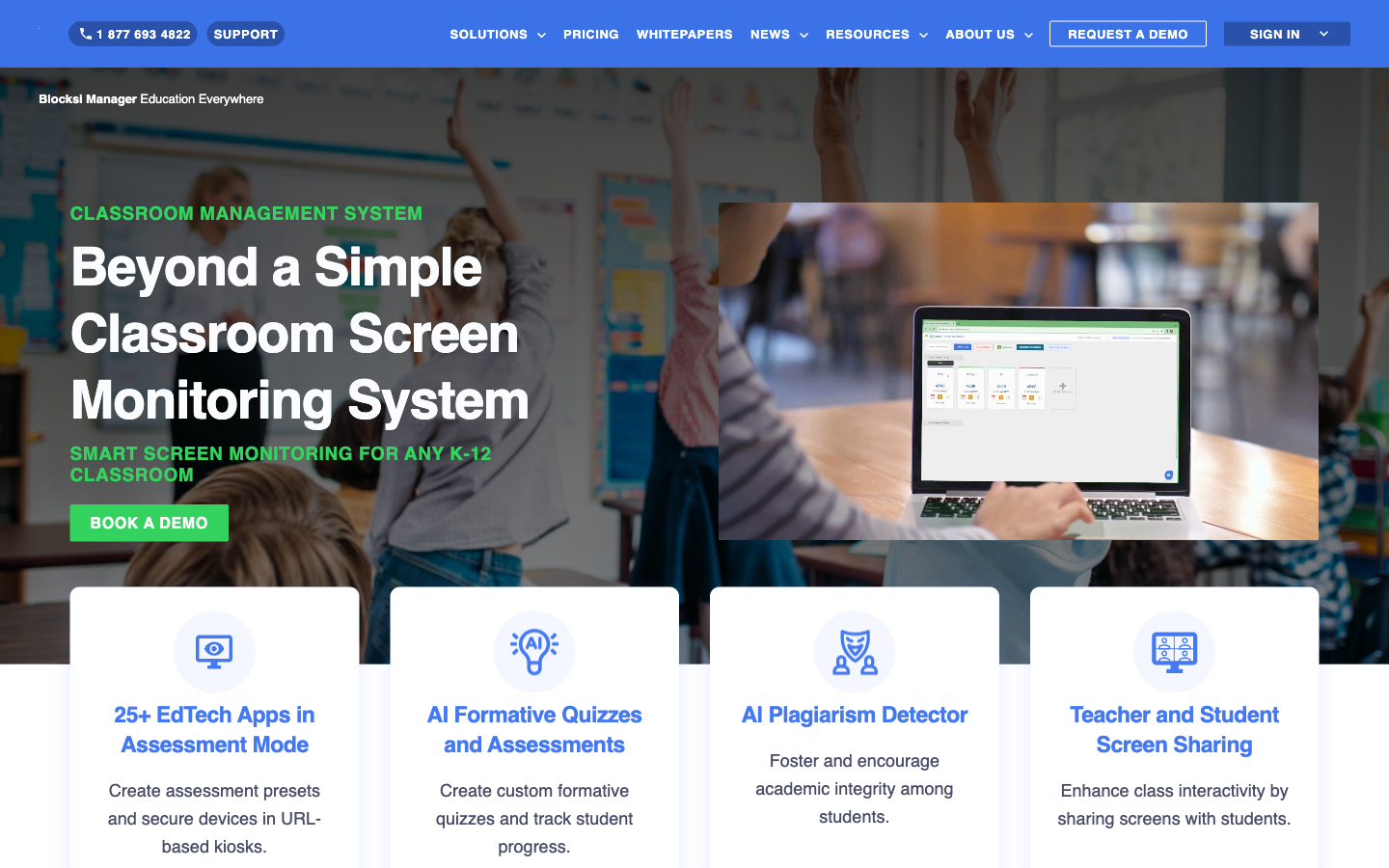
Best for: Schools wanting basic classroom management and web filtering at a lower price point.
Blocksi combines web filtering with classroom management tools at a price that undercuts the bigger players. If your budget is tight and you need basic functionality, it's worth evaluating.
Key features:
- Web filtering and safe search enforcement
- Classroom management dashboard
- Screen viewing
- YouTube content filtering (removes distracting recommendations)
- Website allow/block lists
What teachers like:
- Competitive pricing compared to GoGuardian and Securly
- YouTube filtering is a standout feature
- Straightforward interface without feature bloat
- Adequate for schools that need the basics done well
Limitations:
- Fewer advanced features than premium competitors
- Smaller support team and community
- Less polished UI/UX
- Limited analytics and reporting compared to market leaders
Pricing: Lower per-student pricing than major competitors. Contact for quotes.
Best for: Budget-conscious schools that need reliable basic classroom management.
Quick Comparison Table
Tool | Best For | Approach | Setup | Free Tier |
|---|---|---|---|---|
Focus Room | Session-based focus | Whitelist per session | Teacher (no IT) | Yes |
GoGuardian | Chromebook schools | Always-on + scenes | IT + Google Admin | No |
Securly | District deployment | Filter + classroom | IT + district | No |
| Dyknow | Mixed devices | Cross-platform monitoring | IT deployment | No |
LanSchool | Computer labs | On-prem + cloud | IT deployment | No |
Blocksi | Budget schools | Filter + basic mgmt | IT deployment | No |
How to Choose: Decision Framework
Ask these three questions:
1. Who controls the setup?
- Teacher-controlled: Focus Room. No IT department needed. Teachers create sessions and manage whitelists independently.
- IT-controlled: GoGuardian, Securly, Dyknow, LanSchool, Blocksi. These require school or district deployment.
If you're an individual teacher, tutor, or bootcamp instructor, Focus Room is likely your only option that doesn't require institutional buy-in.
2. What's your monitoring philosophy?
- Session-based (monitor during class only): Focus Room. Respects student privacy outside sessions.
- Always-on (continuous device monitoring): GoGuardian, Securly, Dyknow. Better for schools managing devices 24/7.
Neither approach is inherently better. It depends on your school's values and your students' ages. For younger students, always-on may be appropriate. For high school and college, session-based approaches build trust and self-regulation.
3. What devices do your students use?
- Chromebooks: GoGuardian (best integration) or Securly
- Mixed (Windows + Mac + Chromebook): Dyknow or LanSchool Air
- BYOD / personal devices: Focus Room (browser extension works on any device with Chrome or Edge)
- Computer labs: LanSchool (strongest on-premises features)
The Emerging Category: Focus Tools vs. Surveillance Tools
There's a growing philosophical split in classroom management software:
Surveillance tools (GoGuardian, Securly, Dyknow) prioritize visibility—teachers see everything students do on their devices. This works well for younger students and school-managed devices, but can create an adversarial dynamic with older students.
Focus tools (Focus Room) prioritize environment design—instead of watching everything, they shape what's accessible. Students know the boundaries, understand the whitelist, and operate within a defined space.
The trend in 2026 is moving toward focus-first approaches, especially for older students and virtual/hybrid learning environments. Teachers increasingly report that students respond better to clear boundaries than to the feeling of being watched.
This doesn't mean surveillance tools are obsolete—they serve important safety functions for younger students. But the best classroom management strategy often combines both: school-level filtering for safety (Securly, GoGuardian) with session-level focus tools (Focus Room) for productive class time.
Frequently Asked Questions
Can I use Focus Room alongside GoGuardian or Securly? Yes. They serve different purposes. GoGuardian or Securly handles school-wide web filtering and safety. Focus Room adds per-session whitelist control for specific classroom activities. They complement each other well.
What if my school won't pay for any tool? Focus Room has a free tier. Individual teachers can create sessions without school budget approval. For other tools, many offer pilot programs for interested teachers.
Do any of these tools work on phones? Most classroom management tools focus on laptop/desktop browsers. Student phones remain a separate challenge best addressed with classroom phone policies rather than software.
Which tool has the least privacy concern? Focus Room's session-based model collects the least data — it only tracks web access during active sessions and doesn't monitor devices outside of class. For always-on tools, review their privacy policies and check for FERPA and COPPA compliance.
I'm a tutor, not a school teacher. What should I use? Focus Room. It's the only tool on this list designed for individual educators without institutional IT infrastructure. Create a room, share the code with your student, and start the session.
Get Started
If you're ready to bring structured focus to your online sessions:
Create a free Focus Room — no IT department, no contracts, no setup meetings. Just a room code and a whitelist.
For a walkthrough, see our Getting Started guide.
Have questions about choosing the right tool for your situation? Email us: [email protected]
— The Focus Room Team